








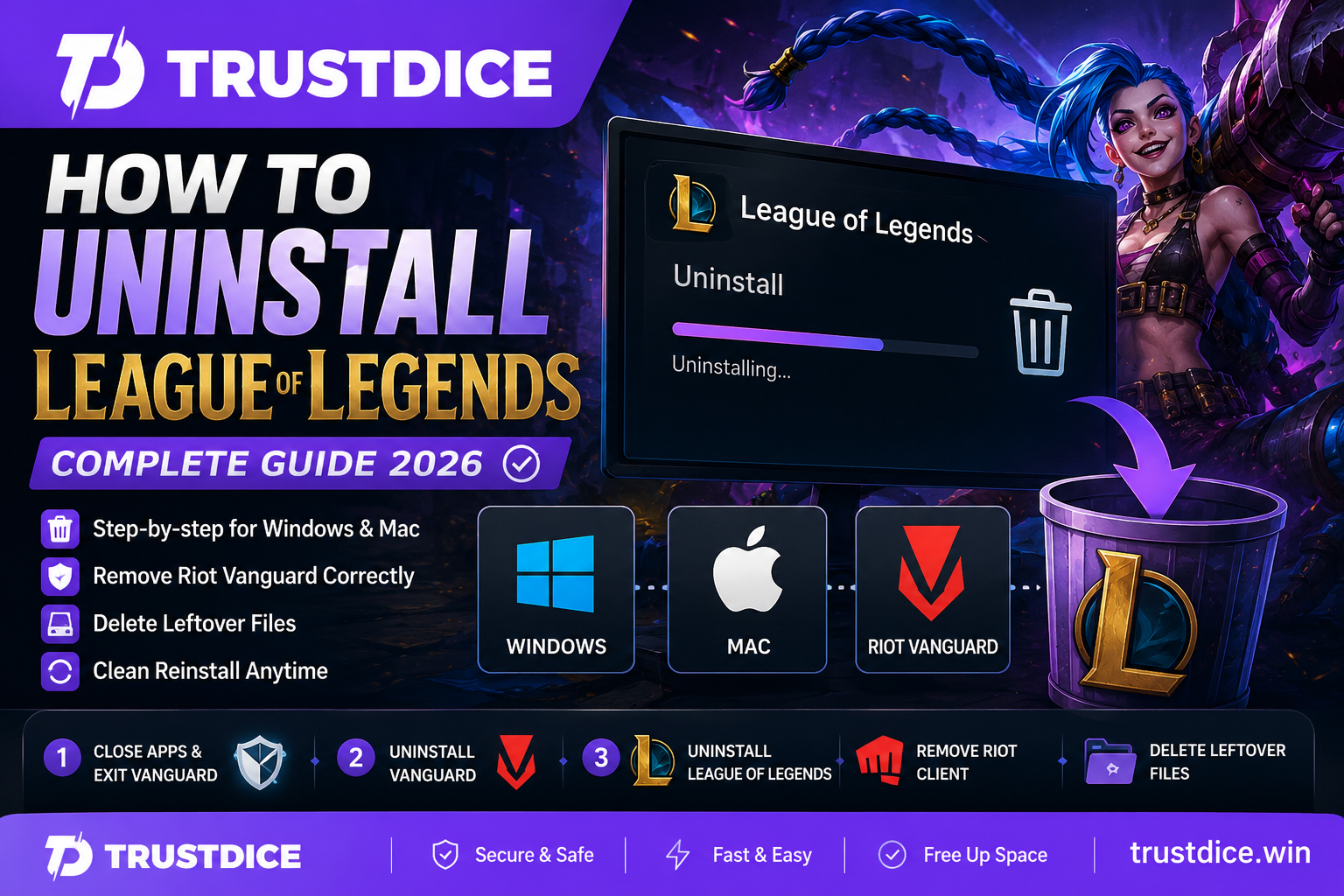
League of Legends remains one of the most played competitive games in the world in 2026. However, not every player plans to stay on the Rift forever. Whether you're freeing up storage space, troubleshooting client issues, taking a break from ranked games, or switching to another title, knowing how to uninstall League of Legends correctly can save you time and prevent leftover files from causing problems later.
Since Riot Games has updated both the Riot Client and Vanguard integration over the past few years, the removal process is slightly different compared to older guides found online. This updated tutorial explains how to delete League of Legends completely on both Windows and Mac devices, including the extra Riot background components that can block a clean uninstall.
Why Players Uninstall League of Legends in 2026
There are several common reasons why players search for how to uninstall League of Legends:
- Freeing up SSD or hard drive space
- Fixing corrupted game files
- Resolving Riot Client errors
- Taking a break from competitive gaming
- Reducing distractions during school or work
- Preparing for a clean reinstall
Because Riot titles now rely on several connected services, uninstalling the game properly means removing League of Legends, checking Riot Client files, and handling Riot Vanguard in the correct order. Skipping that order can leave locked files behind or cause the uninstall process to fail.
💡 Pro Tip: If your goal is fixing crashes, lag, or patching issues, a full removal followed by a fresh installation often resolves problems faster than attempting multiple repairs.
How to Uninstall League of Legends on Windows 11 and Windows 10
The safest method for how to uninstall League of Legends on Windows is to close Riot services first, remove Riot Vanguard if it is active, and then uninstall the game from the Apps menu.
Step 1: Close Riot Applications and Exit Riot Vanguard
- Exit League of Legends.
- Close Riot Client completely.
- Look at the Windows System Tray in the bottom-right corner of your taskbar.
- Right-click the Riot Vanguard icon and choose Exit Vanguard.
- Open Task Manager (Ctrl + Shift + Esc).
- End any remaining Riot-related background processes.
This step matters because Vanguard can keep Riot files active in the background. If those files are locked, Windows may show an error or fail to remove League properly.
Step 2: Remove Riot Vanguard First
- Open Windows Settings.
- Go to Apps → Installed Apps.
- Search for Riot Vanguard.
- Click the three-dot menu.
- Select Uninstall.
- Restart your computer if Windows asks you to do so.
If you also play VALORANT, be aware that removing Vanguard may affect your ability to launch VALORANT until it is reinstalled. If League is your only Riot game, uninstalling Vanguard first is the cleanest option.
Step 3: Remove League of Legends
- Return to Apps → Installed Apps.
- Search for "League of Legends."
- Click the three-dot menu.
- Select Uninstall.
The Riot uninstaller will launch and begin removing game files. Because Vanguard has already been exited and removed, the process should be smoother and less likely to run into file-locking problems.
Step 4: Remove Riot Client
Many users forget this step when trying to complete a full removal.
- Return to Installed Apps.
- Find Riot Client.
- Select Uninstall.
This removes the launcher responsible for managing Riot titles. If you still play other Riot games, you can leave Riot Client installed.
How to Completely Delete Leftover League of Legends Files
Even after uninstalling through Windows, some League and Riot folders may remain on your system.
Common Locations to Check
| Folder | Purpose |
|---|---|
| C:\Riot Games | Main game installation directory |
| %localappdata%\Riot Games | Cached client files |
| %programdata%\Riot Games | Configuration files |
| %appdata% | User settings and logs |
Delete any remaining Riot-related folders if you want a completely fresh system.
This is particularly helpful if you're planning to reinstall later because it prevents old settings, damaged patches, and outdated client data from carrying over.
How to Uninstall League of Legends on Mac
Mac users who want to remove the game can follow a simpler process because Riot Vanguard is not part of the standard Mac League installation.
Step 1: Quit the Game
- Close League of Legends.
- Quit Riot Client.
- Use Activity Monitor if necessary.
Step 2: Move League to Trash
- Open Finder.
- Navigate to Applications.
- Locate League of Legends.
- Drag it to Trash.
Step 3: Remove Riot Support Files
Open Finder and press Command + Shift + G.
Delete Riot-related folders from:
- ~/Library/Application Support
- ~/Library/Caches
- ~/Library/Logs
Step 4: Empty Trash
Restart your Mac after emptying the Trash folder.
League of Legends Installation Size in 2026
Many users uninstall simply to reclaim storage.
| Component | Approximate Size |
|---|---|
| League of Legends | 25-30 GB |
| Riot Client | 500 MB+ |
| Cached Updates | Several GB |
| Logs & Settings | Hundreds of MB |
A full cleanup can often recover more than 30 GB of storage space, especially on older installations with years of patch data and log files.
Can You Reinstall League of Legends Later?
Absolutely. Following how to uninstall League of Legends does not affect your Riot account.
Your account data, skins, champions, ranked history, and purchased content remain safely stored on Riot's servers.
If you return later, simply download the latest Riot Client from Riot Games and log in with your existing credentials.
🎮 Fun Fact: Many players temporarily uninstall League during offseason periods and return when new champions, major reworks, or Worlds events arrive.
Still Love League Esports After Uninstalling?
Deleting the game does not always mean leaving League behind. A lot of players get tired of solo queue pressure, ranked anxiety, smurfs, or endless late-night losing streaks, but they still love the strategy, draft mind games, and explosive teamfights of professional League of Legends.
In fact, moving from hardcore player to esports viewer is common. Watching MSI, Worlds, LCK, LPL, LEC, or LCS can give you the best parts of League without the stress of carrying a 0/7 bot lane at 1 a.m. You still get the macro calls, objective setups, Baron flips, and patch-based champion reads—just without needing to queue up yourself.
For fans who stay connected through the competitive scene, betting on lol can add another layer of engagement during major tournaments. Instead of only asking who has the better roster on paper, viewers start looking at draft priority, side selection, jungle tempo, early objective control, and how teams perform under pressure.
Experienced esports followers may also explore lol bets across markets such as match winners, map handicaps, first dragon, first Baron, total maps, and outright tournament champions. If you already understand patch trends and team identities, watching League from an analyst's chair can be just as fun as grinding ranked.
Troubleshooting Uninstall Problems
If the uninstall process is not working correctly, try these solutions:
- Exit Riot Vanguard from the System Tray before uninstalling.
- Uninstall Riot Vanguard before removing League of Legends.
- Run the uninstaller as Administrator.
- Restart your computer before uninstalling.
- Disable antivirus software temporarily.
- Close Riot Client processes in Task Manager.
- Use Windows Safe Mode if files remain locked.
In rare situations, Riot's official repair tool may need to run before the game can be removed properly.
Frequently Asked Questions
Will uninstalling League of Legends delete my account?
No. Your Riot account remains active and all progress is stored online.
Do I need to uninstall Riot Client too?
If you no longer play Riot games, yes. Otherwise, you can keep it installed.
Should I uninstall Riot Vanguard before League of Legends?
Yes, on Windows it is usually safer to exit and uninstall Riot Vanguard before removing League of Legends. This helps prevent background anti-cheat services from locking Riot files during the uninstall process.
Can I reinstall League later?
Yes. Simply download the latest version from Riot Games.
Will uninstalling improve PC performance?
Removing the game frees storage space and eliminates unnecessary Riot background services, which may slightly improve system responsiveness on older PCs.
How long does the uninstall process take?
Most systems complete the process in less than five minutes, though a full cleanup with leftover files may take a little longer.
Final Thoughts
Learning how to uninstall League of Legends is straightforward once you know which Riot components need to be removed first. On Windows, the key detail is handling Riot Vanguard before deleting the game, because active anti-cheat services can lock files and interrupt the process.
Whether you're troubleshooting technical issues, making room for new games, or simply stepping away from ranked competition, following the latest 2026 uninstall process ensures that League, Riot Client, Vanguard, and leftover files are removed correctly.
If you ever decide to return to Summoner's Rift, your account will still be waiting. Until then, enjoy the extra storage space—and if you're still following the professional scene, keeping an eye on major tournaments and occasional betting on lol opportunities can be a fun way to stay connected to the game without grinding solo queue.